VSCode
基本插件
其他常用插件(按需安装)
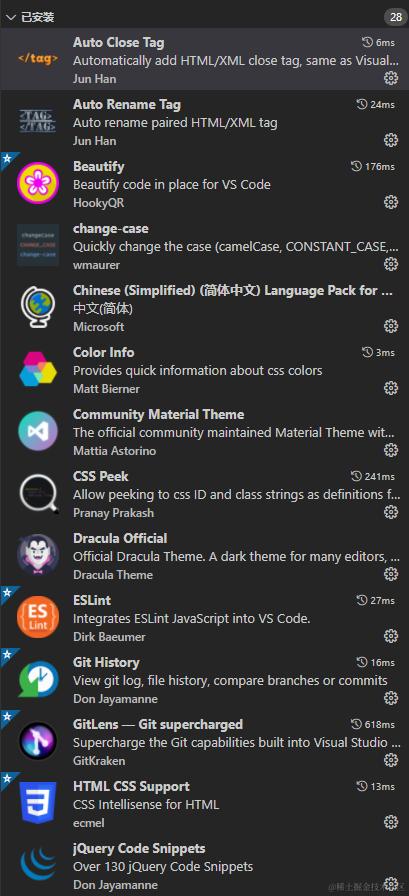 图1 图1 |
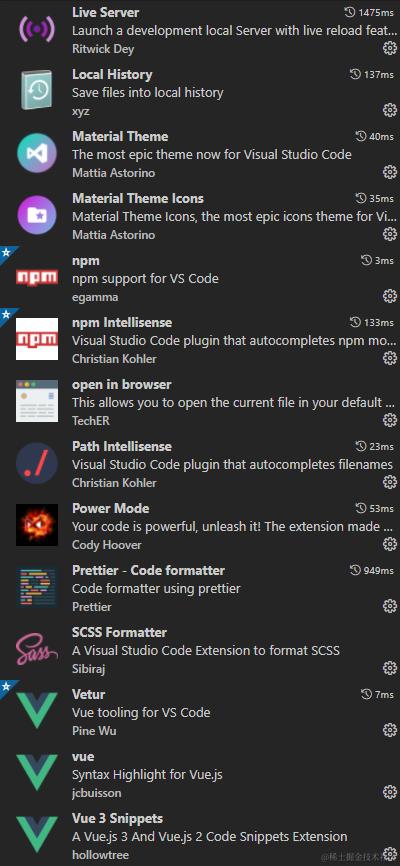 图2 图2 |
ESLint代码格式检查工具,安装 [ESLint]插件之前,需要运行npm install -g eslint。
(项目中基本上通过以下的 ESlint 配置就足够了)
- 在项目根目录添加规则文件
.eslintrc.js,插件将根据其中的规则检查代码; 如果不想让工具检查某个文件或某行代码,可在代码前写入注释/* eslint-disable */禁用。
// .eslintrc.js
module.exports = {
  root: true,
  env: {
    node: true
  },
  globals: {
    BMap: true,
    BMAP_ANCHOR_TOP_LEFT: true
  },
  extends: [
    'plugin:vue/essential',
    '@vue/standard'
  ],
  parserOptions: {
    parser: 'babel-eslint'
  },
  rules: {
    'no-debugger': process.env.NODE_ENV === 'production' ? 'warn' : 'off',
    'no-console': 'off',
    'eol-last': 'off',
    'prefer-const': 'off',
    'no-trailing-spaces': 'off',
    'no-tabs': 'off',
    indent: 'off'
  }
}
- 如果需要忽略多个文件的 lint 检查,可在项目根目录创建一个
.eslintignore文件,写在该文件内的目录/文件将被忽略; - 在
settings.json中加入下面的配置,保存时尝试修复错误。
{
    "editor.codeActionsOnSave": {
        "source.fixAll.eslint": true
    }
}
VSCode 修改制表符为2个空格
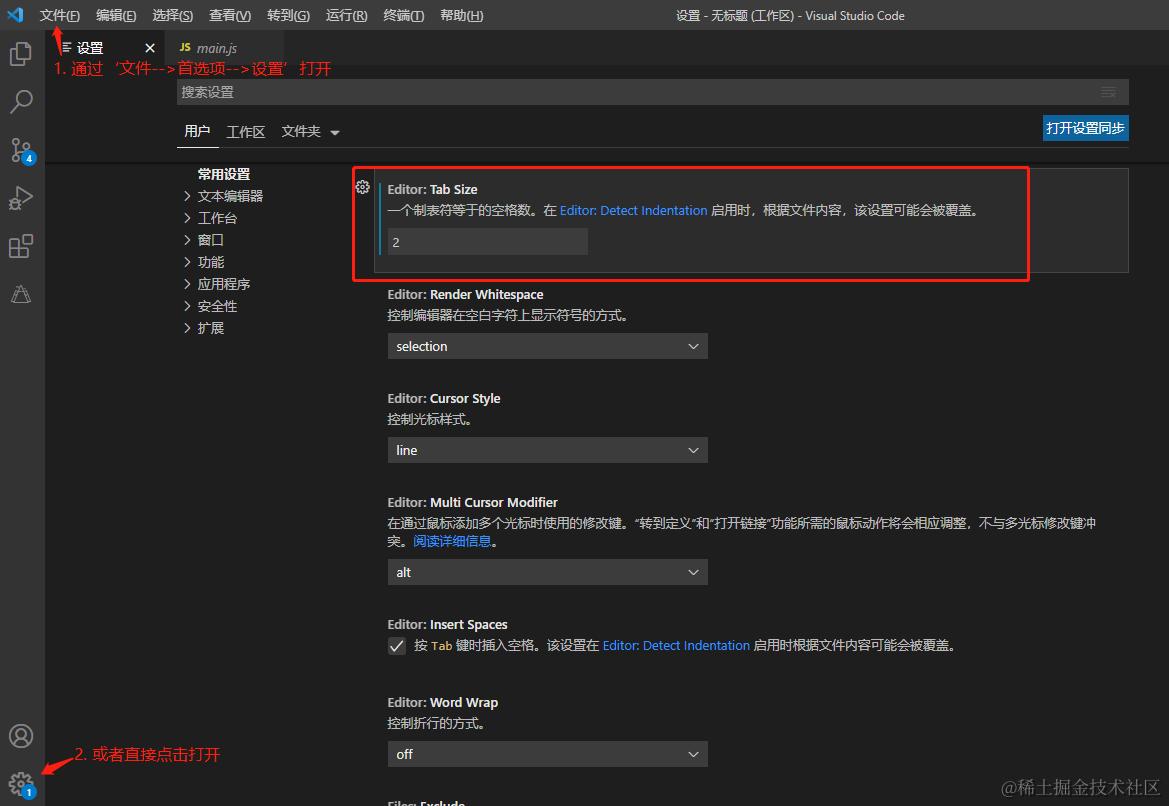
- 打开设置,修改Tab Size,将默认的4修改为2
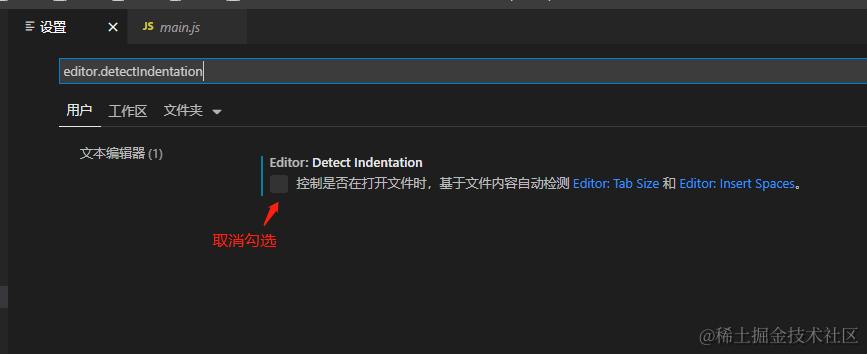
- 修改editor.detectdentation,搜索editor.detectdentation,并取消勾选